

Windows 11’s Latest Update Breaks the ROG Ally Handheld. Here’s How to Fix It.
A recent Windows 11 servicing update enables Smart App Control, a security feature that blocks Armoury Crate SE on ASUS ROG Ally and Xbox Ally handhelds, crippling access to performance modes, controls, and system updates.
Gamers must disable the feature in Windows Security to regain functionality, while pausing updates prevents recurrence.
Here’s the TL;DR:
Windows 11’s Smart App Control flags Armoury Crate as unsafe, locking users out of essential handheld controls.
Affects ROG Ally, ROG Ally X, Xbox Ally, and Xbox Ally X.
Quick fix: Turn off Smart App Control in Windows Security and restart.
Prevention: Pause updates for up to five weeks via Settings.
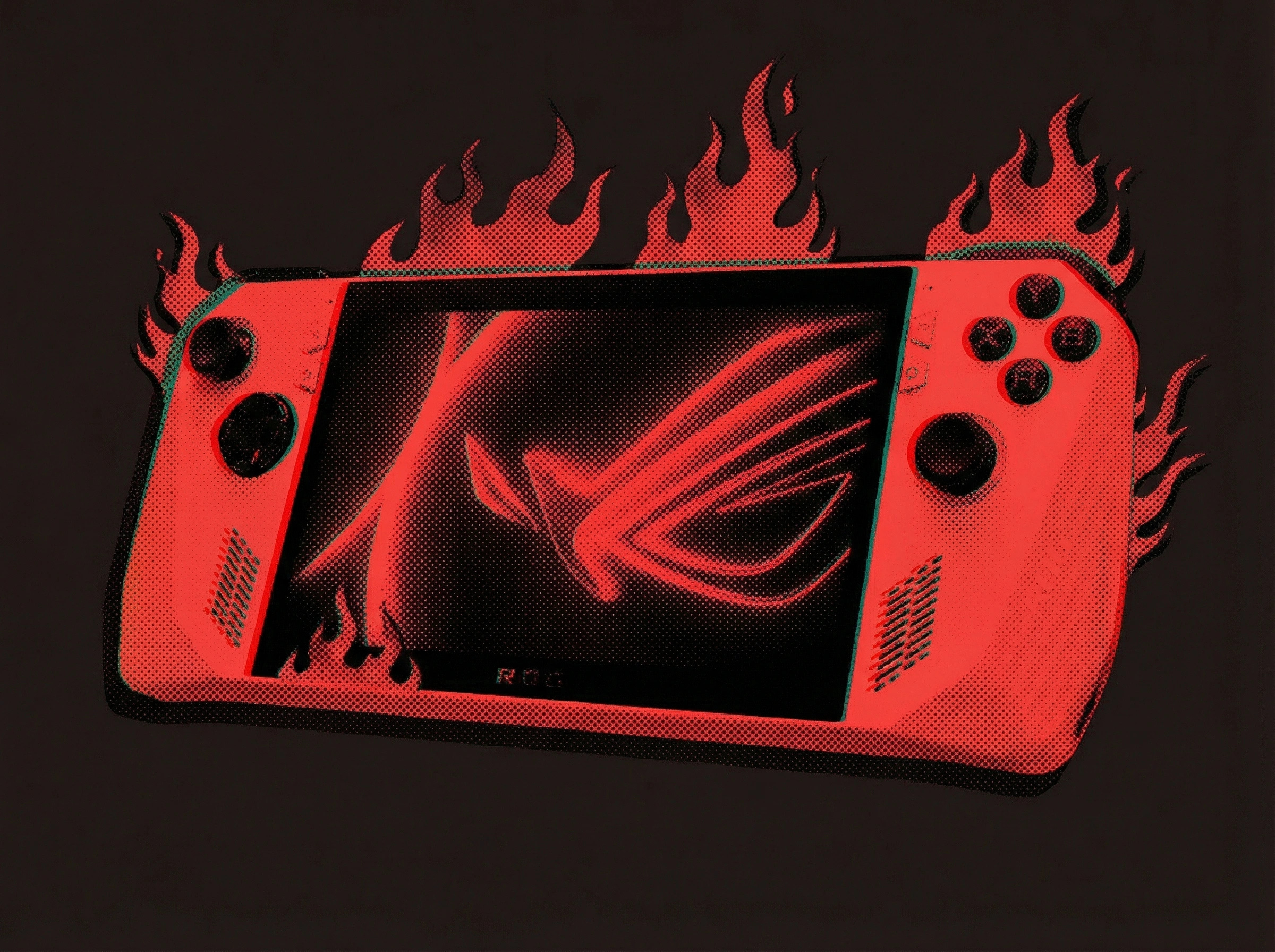
Windows 11’s Smart App Control feature triggers the Armoury Crate block on ROG Ally handhelds.
Microsoft rolled out Smart App Control as part of recent Windows 11 updates.
This AI-driven tool scans apps before launch and blocks those without verified Microsoft Store licensing.
On ROG Ally devices, it targets Armoury Crate SE, ASUS’s core software for managing TDP, fan curves, and game libraries.
These specific ROG Ally and Xbox Ally models suffer from the Windows 11 update bug.
The issue hits the full lineup.
Confirmed devices include the original ROG Ally (Z1 Extreme), ROG Ally X, Xbox Ally, and Xbox Ally X.
Older models like the ROG Ally Z1 may dodge it if Smart App Control stays off by default.
Gamers see dead controls and nagging errors after installing the Windows 11 update.
Users boot into Full Screen Experience (FSE) mode only to find unresponsive buttons.
Armoury Crate throws up:
“Oops! There was an issue with the connections to Armory Crate SE. Please open Armory Crate SE for repairs and try again.”
Desktop mode requires a mouse and keyboard; no quick TDP tweaks or RGB adjustments.
Turning off Smart App Control restores full access to Armoury Crate on ROG Ally.
The toggle lives deep in Windows settings.
Once disabled, reboot brings back controls instantly—no reinstall needed in most cases.
Microsoft notes re-enabling demands a clean Windows reset, but preview builds test a reversible switch.
Follow these exact steps to disable Smart App Control on your ROG Ally handheld.
Exit to desktop mode first.
Open Start, search “Windows Security,” and launch it.
Navigate to App & browser control, then Smart App Control settings—flip to Off and confirm with admin PIN if prompted.
Restart immediately; Armoury Crate should load without errors.
Pause Windows updates on ROG Ally to block future Smart App Control problems.
Head to Settings > Windows Update > Pause updates.
Select 1 to 5 weeks—enough time for Microsoft to patch.
For longer holds, Group Policy Editor (gpedit.msc) lets pros extend to years, but stick to official methods to avoid support woes.
Microsoft and ASUS address the ROG Ally Armoury Crate outage from Windows 11.
Microsoft’s FAQ explains Smart App Control targets unverified apps via cloud checks.
ASUS offers an Armoury Crate uninstall/reinstall guide if the toggle fails:
rog.asus.com/support/FAQ/1041654.
No joint fix yet, but user forums buzz with successes post-disable.
ROG Ally owners can dodge this Windows headache with vigilance and quick tweaks.
This glitch underscores Windows 11’s handheld growing pains—security clashes with custom software like Armoury Crate.
Disabling Smart App Control trades minor risk for usability; Microsoft eyes a toggle fix soon.
Pause updates meantime, and monitor ASUS ROG forums for permanent patches—your next Steam session awaits uninterrupted.
Article compiled by Newsroom Staff on February 03, 2026 and was fact-checked by Editorial before publication.